![RAYLASE Logo Email 150 dpi.png]](https://content.raylase.de/hs-fs/hubfs/RAYLASE%20Logo%20Email%20150%20dpi.png?height=40&name=RAYLASE%20Logo%20Email%20150%20dpi.png)
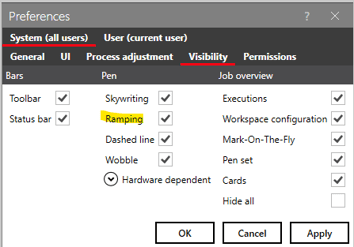
The common way to improve welding seams at the start and end is by using the power ramping function, available in RAYGUIDE pens. If "Ramping" is not visible in your pen settings, enable it under System > Preferences.
Once Ramping is activated you will find the ramping configuration within the pen settings:

Ramping is available in two modes: by weld seam distance or by time intervals. You can define multiple intervals at the start and/or end of a path, with the power changing linearly within each interval.
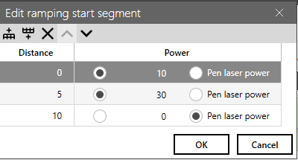
In the example above, power starts at 10% at 0 mm, ramps up to 30% at 5 mm, and reaches the pen’s set power level at 10 mm, indicated by an asterisk as a placeholder. A click on the table symbol  opens a table for easier editing.
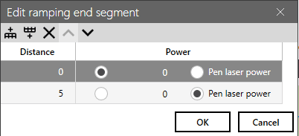
Please be aware that the syntax for the ramping endpoint describes the distance from the end of the vector. As a result, the execution occurs in the reverse order compared to what is indicated in the table.
For more details please refer to the according chapters 7.3.4 Pen Properties in the RAYGUIDE manual and 9.2.3 in SP-ICE-3 manual.
Geometrical Considerations
Due to the ramping the power at the starting point will likely not be sufficient for the desired weld penetration. Therefore it makes sense to make the according weld paths longer wherever ramping is used. For closed welding paths this will require some overlap in the geometry.
A common scenario in welding involves creating circular seams. To achieve proper overlap in these cases, you will need to design an arc that exceeds 360°. For instance, you may wish to ramp up the power for 10°, maintain the weld for 360°, and then ramp down for another 10°. This would necessitate constructing an arc with a total angle of 380°.
To create a 380° arc, begin by using the appropriate function to generate a circle. After the circle is created, right-click on it in the object list and choose the option "Convert to Vector Graphic."
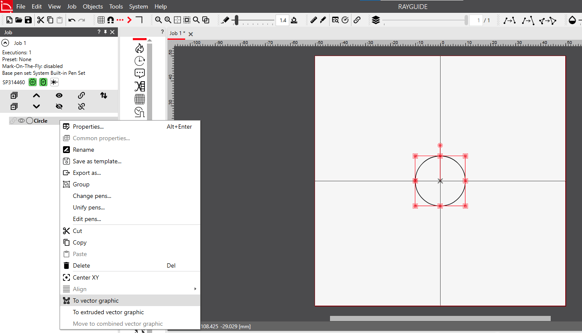
After that you can expand the list down to "Arc" and double click there to open it.
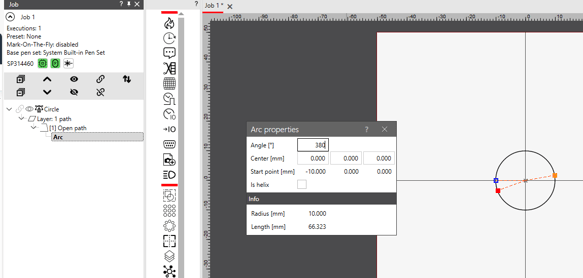
In the Arc properties you can set the Angle to 380° as required.
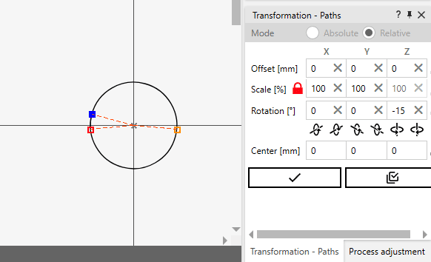
If require you can rotate the circle using "Transformation - Paths" to position the start point at the desired position.